
Record
Shortcuts
Choose a recording shortcut and switch rewrite profiles without opening Settings.
In the appSettings → Voice
On this page
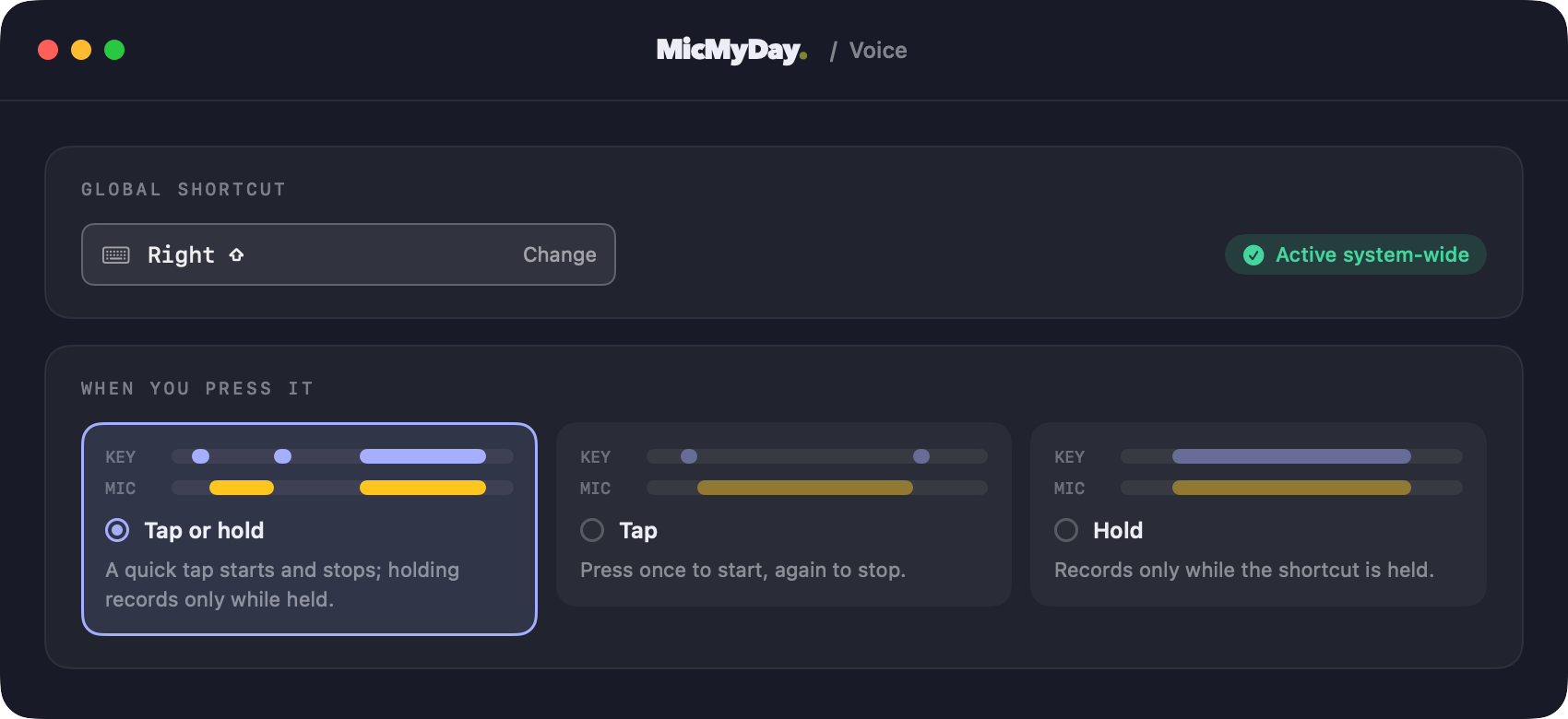
Set the main shortcut
- Open Settings → Voice → Global shortcut.
- Choose Change and press the shortcut you want.
- For a single modifier such as Right Shift, release the key to finish choosing it.
- Check that the shortcut shows Active system-wide.
Use a modifier plus a key, a function key, or one modifier on its own. A bare letter or number is not a valid shortcut. Press Esc during capture to keep the current shortcut.
A modifier-only shortcut needs Input Monitoring. If another app already uses your combination, choose a different one.
Choose tap or hold behavior
| Mode | How it behaves |
|---|---|
| Tap or hold | The default. Tap once to start and again to stop. Hold for at least one second, then release, to finish a push-to-talk recording. |
| Tap | Press once to start and again to stop. Releasing the shortcut does not end the recording. |
| Hold | Record while the shortcut is held and finish on release. Very brief accidental taps are discarded. |
Stop or cancel
The menu-bar panel provides Start dictation, Stop & transcribe, and Cancel. Use the panel if you want to record without a keyboard shortcut.
Press Esc to cancel the current recording or processing. If you are using direct live typing, cancellation cannot remove words already inserted into another app.
Shortcuts for rewrite profiles
With rewriting configured, open Settings → Rewrite:
- Cycle profiles → Next profile: press ⌃⌥⌘→ (Control + Option + Command + Right Arrow) to select the next profile. After the last profile, it returns to the first.
- Cycle profiles → Previous profile: press ⌃⌥⌘← (Control + Option + Command + Left Arrow) to select the previous profile. From the first profile, it wraps around to the last.
- Profile shortcuts: assign a combination to a particular profile. From idle, pressing it selects that profile and starts recording.
Neither cycling shortcut starts a recording. Choose Change beside either shortcut to assign a different combination.
These actions need a regular combination or function key, rather than a modifier-only shortcut. Use the small Clear shortcut control to remove an assignment.
You can change the selected profile while recording. Choose it before stopping; changing it after transcription begins does not change that dictation’s rewrite.
Dictate without rewriting
Under Profile shortcuts, assign a shortcut to No rewrite. From idle, one press selects it and starts recording. MicMyDay then uses the transcript without loading or contacting the configured rewrite model.
No rewrite remains selected after the dictation. Choose another profile when you want rewriting again. The next and previous profile shortcuts move only between rewrite profiles, so either one also takes you back to a rewriting profile.
Filler-word removal and saved corrections still apply. See Raw transcription if you want to turn those changes off too.
Microphone and recording limits
Choose your input and maximum recording length under Settings → Voice → Recording. See Microphone & audio for device selection and headset behavior.
Start or stop with your voice
For hands-free starts and silence-based stopping, see Voice activation. Those settings are separate from the shortcut’s tap and hold behavior.