
Use your text
Transcript history
Find a previous thought, compare a rewrite, or copy text you want to use again.
In the appMenu-bar panel → History
On this page
Find a transcript
- Open the MicMyDay menu-bar panel and choose History.
- Use Search to find words in the original or rewritten text, or the destination app’s name.
- Select a matching entry to read it.
- Use its copy control to place the text on your clipboard, then paste wherever you need it.
Entries include the time, transcription engine, and delivery destination. Rewritten entries also identify the rewrite profile.
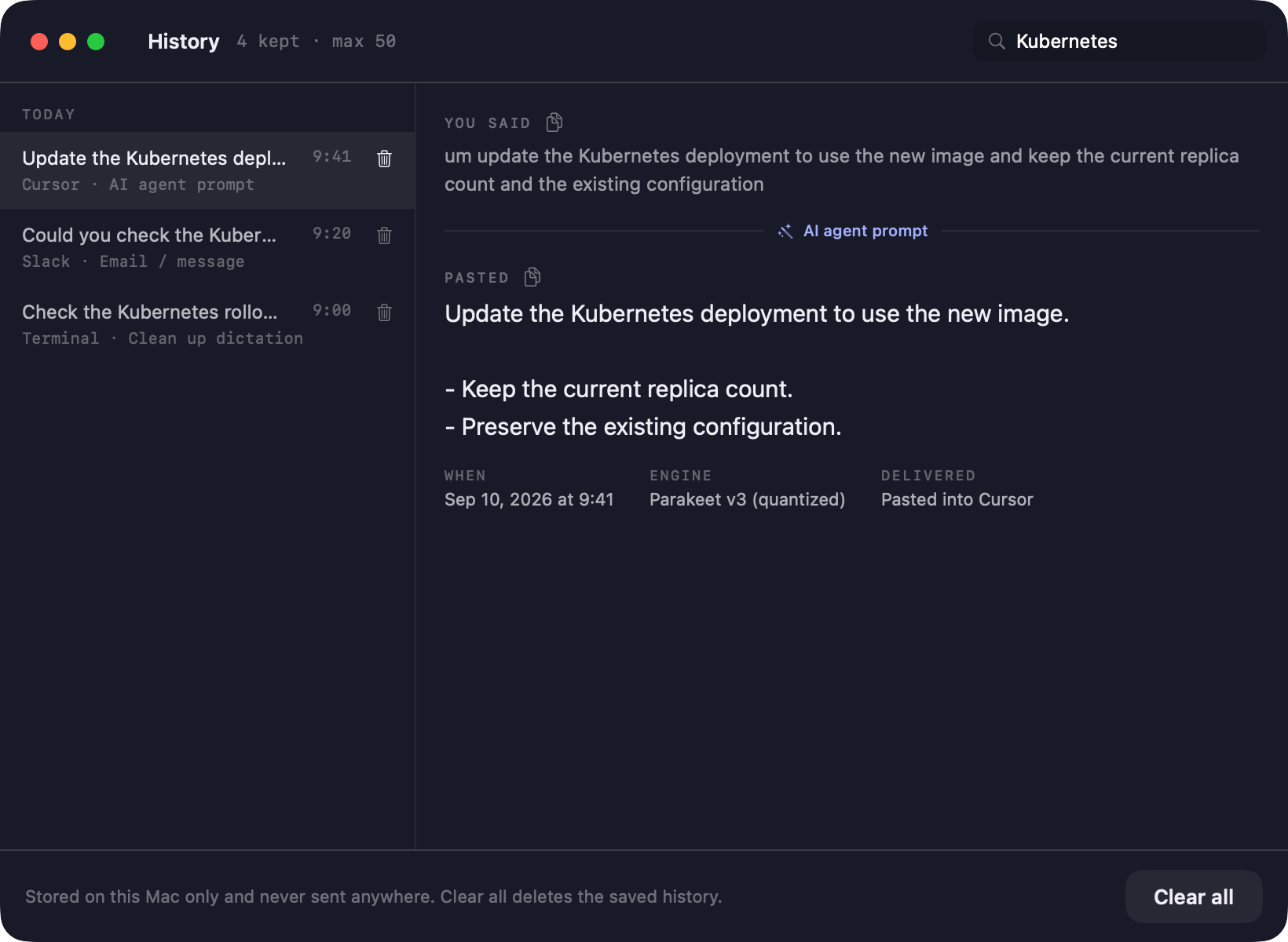
Read the text before and after rewriting
A rewritten entry lets you read the text before rewriting and the final result. Each has a copy control, so you can reuse whichever version you prefer.
You said shows the transcript after any enabled filler removal and corrections, before rewriting. History saves these text versions for reading and copying.
Choose the retention limit
Under Settings → General → History, Keep recent transcripts is on by default. How many to keep defaults to 50.
The available limits are 10, 25, 50, 100, 500, 1,000, and 5,000. When the list exceeds the limit, the oldest entries are removed. Lowering the limit also removes entries beyond the new limit.
Delete one entry or the whole list
Use an entry’s trash button to delete it. Use Clear all in History or Clear now in Settings to empty the list.
To stop keeping history and clear existing entries, use Clear all or Clear now, then turn Keep recent transcripts off.
Turning the setting off removes saved history from disk; the current list stays visible until cleared or the app restarts. Clearing it also prevents those entries from returning if you enable history again. The latest menu-bar result remains available until it is replaced or you quit MicMyDay.
What deletion covers
History is stored locally on this Mac. Clearing it does not remove copies already pasted into another app or saved by a clipboard manager, and it does not delete data already received by an AI provider.
Usage statistics are kept separately: clearing history or turning it off does not reset your usage counters. See removing your data for the separate controls.