Transcribe
Raw transcription
Skip AI rewriting and control the local cleanup that can still change a transcript.
In the appSettings → Transcription and Rewrite
On this page
Start with the recognized transcript
If rewriting is on, choose No rewrite in the profile picker. It appears in Settings → Rewrite, the menu-bar panel, and the recording overlay. MicMyDay does not load a rewrite model or send the transcript to a rewrite provider while this choice is active.
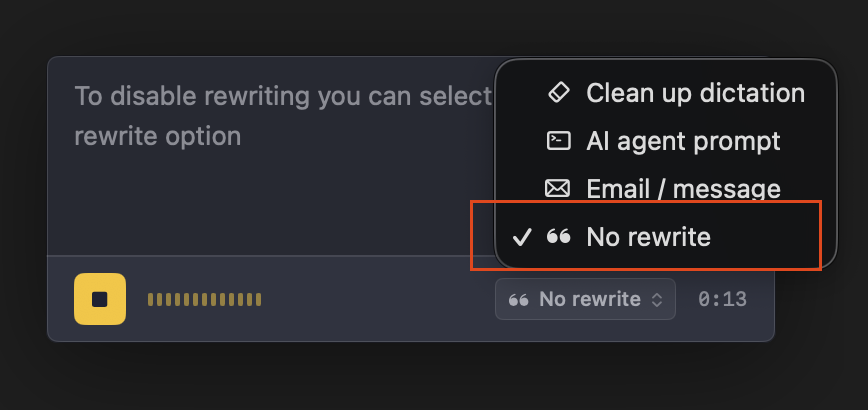
No rewrite stays selected until you choose another profile. It does not switch rewriting off, so selecting another profile is enough to use that profile again. The choice itself is fixed: it cannot be renamed, edited, given another icon, or deleted.
Choose one dictation or every dictation
| You want | Use |
|---|---|
| The recognized transcript for occasional dictations | Keep rewriting on and choose No rewrite. Choose another profile when you want rewriting again. |
| The recognized transcript for every dictation | Turn off Settings → Rewrite → Rewrite transcripts before inserting. |
Both choices skip the rewrite model and produce the same text after MicMyDay’s non-AI cleanup. The difference is whether rewrite profiles remain ready to select.
Turn off the other text changes
Skipping the rewrite model does not bypass filler removal or saved corrections. Those local, non-AI steps run before rewriting:
- Choose No rewrite, or turn rewriting off.
- Open Settings → Transcription → Filler words and turn off Remove filler words. It is on by default.
- Under Settings → Transcription → Corrections, uncheck or remove any enabled replacement rules.
With all three changes in place, MicMyDay inserts the text returned by the speech model without applying its own post-transcription cleanup. Speech recognition can still mishear or punctuate words differently from how you intended, so check important text against what you said.
See Filler words and saved corrections for the detailed controls.