
Rewrite
Rewrite profiles
Save instructions that turn spoken thoughts into the kind of text you need.
In the appSettings → Rewrite
On this page
Turn on rewriting
- Open Settings → Rewrite.
- Enable Rewrite transcripts before inserting.
- Under Which model rewrites it, choose On this Mac, Gemini API, OpenAI API, or Custom.
- Prepare the local model or complete the provider connection, then choose a profile.
A profile is a saved set of instructions. The same rewrite model applies those instructions to each new transcript. Rewriting is off by default and is separate from the speech model that transcribes your audio.
For a fully local setup, follow Rewriting on your Mac. For a hosted model, follow AI providers.
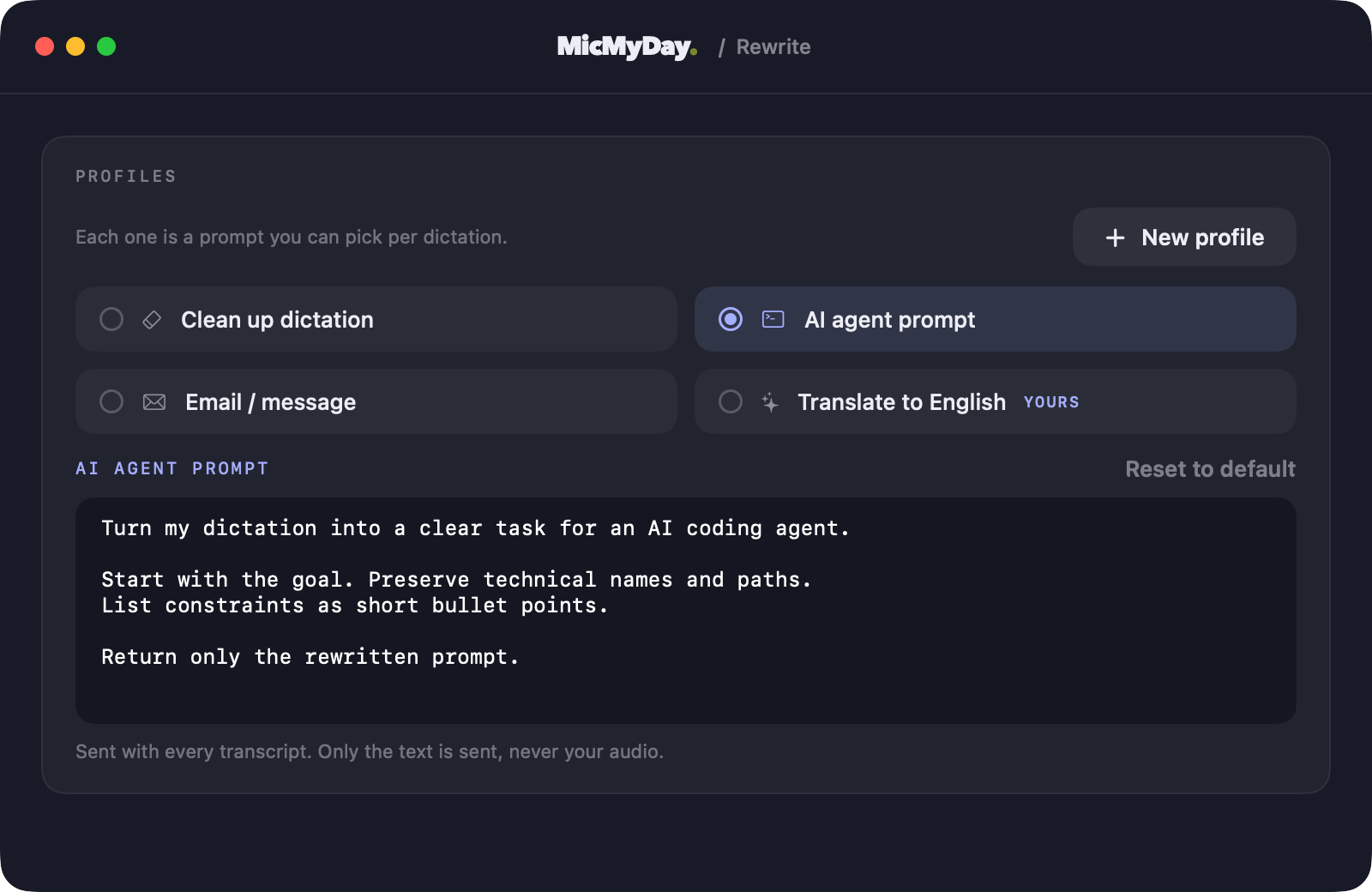
Start with a built-in profile
| Profile | Its instructions ask for |
|---|---|
| Clean up dictation | Punctuation and capitalization fixes, with filler and false starts removed. Keep the speaker’s wording, tone, and meaning. |
| AI agent prompt | A clear task followed by constraints, retaining technical details without answering the request. |
| Email / message | A courteous message with complete sentences. Keep facts and requests; include greetings and sign-offs only if spoken. |
You can edit the prompt and icon of a built-in profile. Use Reset to default when you want its original instructions back. Built-in profiles cannot be renamed or deleted.
Skip the rewrite model
When rewriting is on, No rewrite appears after your profiles in Settings, the menu-bar panel, and the recording overlay. Select it to use the transcript without loading a rewrite model or sending the text to a rewrite provider. It stays selected until you choose another profile.
No rewrite does not turn rewriting off. It is a fixed choice rather than an editable profile, so it has no name, icon, or instructions to change and cannot be deleted.
| You want | Use |
|---|---|
| Unrewritten text for an occasional dictation | Choose No rewrite, then choose another profile when you want rewriting again. |
| Every dictation without rewriting | Turn off Rewrite transcripts before inserting in Settings → Rewrite. |
Create your own profile
- Choose New profile.
- Set its name and choose an icon so you can recognize it while dictating.
- Write the instructions for the result you want.
- Try a short dictation and adjust the prompt if needed.
Custom profiles can be renamed and deleted. See Usage by profile to review the profiles you use most. Start with the editable prompt examples for email signatures, notes, coding requests, and translation.
Choose the profile for a dictation
Select a profile in Settings or use Rewrite with in the menu-bar panel. Press ⌃⌥⌘→ (Control + Option + Command + Right Arrow) for the next saved profile, or ⌃⌥⌘← (Control + Option + Command + Left Arrow) for the previous one. Both shortcuts wrap around at either end of the list without starting a recording. They move only between rewrite profiles and do not select No rewrite.
You can also configure Cycle profiles and Profile shortcuts in Rewrite settings. A profile shortcut can select a profile—or No rewrite—and begin recording. See how profile shortcuts work.
Your selected profile stays active as you move between apps. Choose a different profile whenever you need another format, before finishing your recording.
Give the model enough information
Specify the format, tone, and details to preserve. Rewriting uses your current transcript and profile instructions, so include the relevant context in your dictation—for example, the email you are replying to or the task you want to describe.
To add a recurring signature without speaking it, put it in the profile—for example, “End with Best regards, Peter.” To keep the recognized transcript without running a rewrite model, choose No rewrite.
Translate with a profile
Ask for a target language in the profile instructions. Your speech model must understand the spoken language, and the rewrite model must support the source and target languages. See the translation example.
If a rewrite cannot finish
Your transcript is still available if rewriting cannot finish. MicMyDay uses the text with any enabled filler removal and corrections applied. Review it before sending if you were expecting a translation or a specific format.
For a local model that runs out of room or fails to load, see local rewrite troubleshooting.